



In the modern software landscape, the shift toward mobile-first development has fundamentally changed how engineers approach Software Debugging. Unlike desktop or server environments, mobile devices introduce a unique set of constraints—varying screen sizes, limited battery life, unstable network connections, and fragmented hardware specifications. Whether you are building native applications, cross-platform solutions with React Native or Flutter, or mobile games using engines like Godot or Unity, Mobile Debugging requires a proactive and multifaceted strategy.
Debugging on a mobile device is often more complex than standard Web Debugging. You cannot simply inspect an element as easily as you would with Chrome DevTools on a desktop. Issues such as memory leaks, thread blocking, and rendering artifacts often behave differently on a physical device compared to a simulator. Furthermore, the integration of complex backend services means that Full Stack Debugging skills are essential, bridging the gap between Frontend Debugging on the device and Backend Debugging on the server.
This comprehensive guide explores the depths of mobile application troubleshooting. We will cover core concepts of logging and error tracking, implementation details for remote debugging, advanced profiling techniques, and best practices for integrating debugging into your CI/CD Debugging pipelines.
Section 1: The Foundations of Mobile Logging and Error Tracking
The first line of defense in any Application Debugging scenario is a robust logging infrastructure. In mobile development, standard print statements are insufficient and often dangerous if left in production code, as they can degrade performance and expose sensitive data. Effective logging requires a structured approach that categorizes events by severity (DEBUG, INFO, WARN, ERROR) and includes context such as Stack Traces and device state.
Structured Logging in Native Environments
When dealing with Android Development or iOS Development, using the platform’s native logging systems (Logcat for Android, Unified Logging for iOS) is critical. However, wrapping these in a custom utility class allows for better control over what gets logged during development versus production. This is a key aspect of Debugging Best Practices.
Below is an example of a structured logging utility in Kotlin for Android. This utility ensures that debug logs are only printed when the application is in a debug build, preventing Performance Monitoring overhead in production.
import android.util.Log
import com.example.myapp.BuildConfig

object AppLogger {
    private const val TAG = "AppDebug"

    fun d(message: String) {
        if (BuildConfig.DEBUG) {
            Log.d(TAG, buildMessage(message))
        }
    }

    fun e(message: String, throwable: Throwable? = null) {
        // Always log errors, even in production (or send to Crashlytics)
        Log.e(TAG, buildMessage(message), throwable)
        if (!BuildConfig.DEBUG) {
            // Integration with Error Monitoring tools like Sentry or Crashlytics
            // CrashReporting.logException(throwable)
        }
    }

    private fun buildMessage(message: String): String {
        val stackTrace = Thread.currentThread().stackTrace[4]
        return "[${stackTrace.fileName}:${stackTrace.lineNumber}] $message"
    }
}

// Usage
// AppLogger.d("User tapped the login button")
// AppLogger.e("API Connection failed", e)
Handling Asynchronous Errors
Mobile apps are inherently asynchronous. Network requests, database operations, and user interactions happen on different threads. Async Debugging is notoriously difficult because the stack trace often gets lost across thread boundaries. When performing API Debugging, it is essential to capture the context before the async operation begins so that if an error occurs, you can trace it back to the source.
In JavaScript Development frameworks like React Native, unhandled promise rejections are a common source of crashes. Implementing a global error handler is a mandatory step in React Debugging.
Section 2: Remote Debugging and Network Inspection
One of the biggest challenges in mobile development is the “black box” nature of the device. Remote Debugging bridges this gap by allowing developers to inspect the internal state of an app running on a physical device from their development machine. This is vital for Hybrid App Debugging and verifying CSS/Layout issues on actual screens.

Network Traffic Interception
When your mobile app communicates with a backend—whether it’s Node.js, Python (Django/Flask), or Java—you need visibility into the HTTP traffic. Network Debugging involves inspecting headers, payloads, and response codes. While tools like Charles Proxy or Wireshark are powerful, integrating network logging directly into your code provides immediate insights during the development loop.
Here is an example of a network interceptor using JavaScript (Axios), which is common in React Native, Vue Debugging, or Angular Debugging within hybrid wrappers. This snippet logs the duration of requests, helping identify Performance bottlenecks in API Development.
import axios from 'axios';

const apiClient = axios.create({
  baseURL: 'https://api.example.com',
  timeout: 10000,
});

// Request Interceptor
apiClient.interceptors.request.use(config => {
  config.metadata = { startTime: new Date() };
  console.log(`[API Request] ${config.method.toUpperCase()} ${config.url}`);
  return config;
}, error => {
  return Promise.reject(error);
});

// Response Interceptor
apiClient.interceptors.response.use(response => {
  const duration = new Date() - response.config.metadata.startTime;
  console.log(`[API Response] ${response.status} ${response.config.url} - ${duration}ms`);
  return response;
}, error => {
  if (error.response) {
    console.error(`[API Error] ${error.response.status} - ${JSON.stringify(error.response.data)}`);
  } else {
    console.error(`[Network Error] ${error.message}`);
  }
  return Promise.reject(error);
});

export default apiClient;
Visual Debugging in Game Engines
For developers working with game engines (like Godot or Unity), standard console logs are often inaccessible once the game is deployed to a mobile device. A powerful technique here is implementing an on-screen debug console. This allows you to view Debug Performance metrics (FPS, memory usage) and custom logs directly on the phone screen without needing a USB connection constantly.
This concept applies to Mobile Debugging generally: if you can visualize the data on the device, you reduce the friction of finding bugs. Below is a conceptual example using GDScript (Godot) to create a simple on-screen logger, demonstrating how to mobilize your debugging tools.
extends CanvasLayer

# A simple on-screen debug console for mobile
onready var log_label = $ScrollContainer/VBoxContainer/LogLabel
var max_lines = 20
var logs = []

func _ready():
    # Redirect standard print to our on-screen console
    print("Mobile Debugger Initialized")

func log_message(message: String):
    var timestamp = OS.get_time()
    var time_str = "%02d:%02d:%02d" % [timestamp.hour, timestamp.minute, timestamp.second]
    var new_line = "[%s] %s" % [time_str, message]

    logs.push_front(new_line)
    if logs.size() > max_lines:
        logs.pop_back()

    update_display()

func update_display():
    log_label.text = ""
    for line in logs:
        log_label.text += line + "\n"

# Usage in other scripts:
# DebugOverlay.log_message("Player health: " + str(health))
Section 3: Advanced Techniques and Automation
As applications scale, manual debugging becomes inefficient. Advanced Software Debugging involves Static Analysis, Dynamic Analysis, and Debug Automation. This section explores how to automate the retrieval of logs and analyze memory usage, which is crucial for Memory Debugging on resource-constrained devices.
Automating Log Analysis with Python
When debugging intermittent crashes or complex state issues, you might generate megabytes of log data. Manually parsing “logcat” (Android) or “syslog” (iOS) is tedious. Python Debugging scripts can be used to filter and analyze these logs automatically. This is particularly useful in System Debugging where you need to correlate app events with system-level events (like low memory warnings or network connectivity changes).
The following Python script demonstrates how to wrap the Android Debug Bridge (ADB) to filter logs for specific keywords and error patterns, a technique essential for Error Tracking in QA workflows.
import subprocess
import re

def analyze_logs(package_name):
    print(f"Starting log analysis for {package_name}...")

    # Clear buffer
    subprocess.run(["adb", "logcat", "-c"])

    process = subprocess.Popen(
        ["adb", "logcat"],
        stdout=subprocess.PIPE,
        universal_newlines=True
    )

    error_pattern = re.compile(r'(FATAL|Exception|Error|Crash)')

    try:
        for line in process.stdout:
            # Filter only logs related to our package or system errors
            if package_name in line or error_pattern.search(line):
                if "FATAL" in line:
                    print(f"\033[91m[CRITICAL] {line.strip()}\033[0m")
                elif "Exception" in line:
                    print(f"\033[93m[EXCEPTION] {line.strip()}\033[0m")
                else:
                    print(line.strip())
    except KeyboardInterrupt:
        print("\nStopping log analysis.")
        process.kill()

if __name__ == "__main__":
    # Replace with your app's package name
    analyze_logs("com.example.mobileapp")
Memory and Performance Profiling
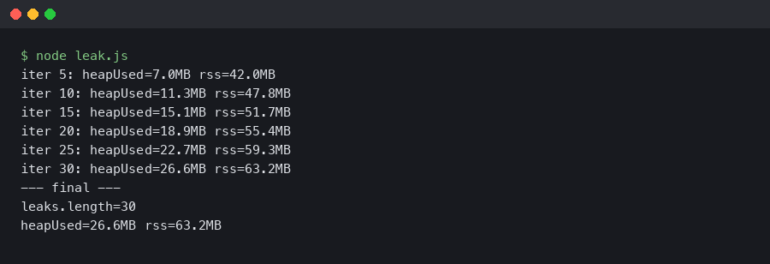
Memory Debugging is the silent killer of mobile apps. A memory leak might not crash the app immediately but will eventually lead to an Out Of Memory (OOM) termination by the OS. In iOS Development, retain cycles in closures are a common culprit. In Android, leaking Activity contexts is frequent.
Using Profiling Tools like Xcode Instruments or Android Studio Profiler is mandatory. However, you can also write code to help detect these issues. For example, in Swift, ensuring you use `[weak self]` in closures is a standard Debugging Technique to prevent retain cycles.

Furthermore, if you are using Docker Debugging or Kubernetes Debugging for your backend, ensure that your mobile app handles backend timeouts gracefully. A backend performance issue often manifests as a “frozen” mobile UI if the Async Debugging logic is flawed.
Section 4: Best Practices and Optimization
To maintain a healthy codebase and high-quality user experience, debugging must be proactive, not just reactive. Here are key strategies to optimize your debugging workflow:
1. Integrate Crash Reporting Early
Never launch without Error Monitoring tools like Sentry, Firebase Crashlytics, or Bugsnag. These tools provide Stack Traces for crashes happening on user devices, which are impossible to reproduce locally without context. They group JavaScript Errors or native crashes by frequency, allowing you to prioritize Bug Fixing based on user impact.
2. Embrace CI/CD Debugging
Automate your testing. Unit Test Debugging and Integration Debugging should happen in the cloud on every commit. If a test fails in the CI pipeline, the system should generate artifacts (logs, screenshots) that allow for Remote Debugging of the build failure. This prevents regressions from reaching the QA team.

3. Toggle-able Debug Features
Implement a “Debug Menu” hidden in your production app (accessible via a secret gesture). This menu can allow testers to switch API Development endpoints (staging vs. production), enable verbose logging, or display overlay metrics. This empowers non-developers to assist in Production Debugging.
4. Unified Full Stack Tracing
For complex issues involving Microservices Debugging, implement distributed tracing. When the mobile app makes a request, generate a unique Trace ID and send it in the headers. This ID should pass through your Node.js, Python, or Go backend services. When an error occurs, you can search logs across the entire stack using that single ID, unifying Frontend Debugging and Backend Debugging.
Conclusion
Mobile debugging is a discipline that extends far beyond fixing syntax errors. It encompasses Network Debugging, performance profiling, memory management, and the strategic use of Developer Tools. By moving debugging considerations to the start of the project—thinking about mobile constraints early—developers can build resilient applications that withstand the rigors of the real world.
Whether you are using Chrome DevTools for a hybrid app, Xcode for iOS, or building custom extensions for game engines, the goal remains the same: visibility. The more visibility you have into the application’s runtime behavior, the faster you can iterate. Implement structured logging, automate your log analysis, and never underestimate the power of a good remote debugging setup. As mobile hardware continues to evolve, mastering these Debugging Techniques will remain the defining skill of top-tier mobile engineers.