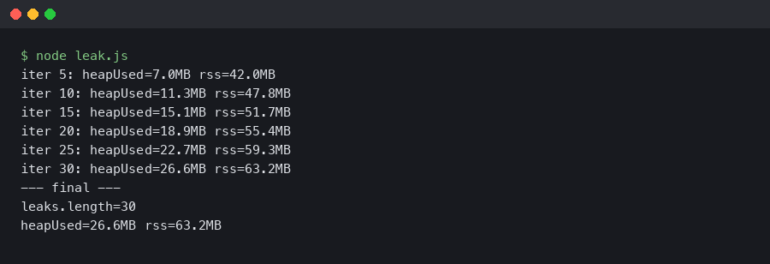




A screaming server rack usually points to a hardware issue. When Noctua fans pin at 100% and push hot air out of a chassis like a jet engine, it’s easy to blame the thermals. But recently, a system monitor showed our custom Node.js matchmaking backend was consuming 28GB of a newly installed 32GB DDR5 RAM kit. I had just built this dedicated machine to host game servers and track community leaderboards for a Sim Racing league. It was supposed to be overkill. Instead, the server crashed every 48 hours with fatal Out of Memory (OOM) errors.
Table of Contents
- The Hardware Toll of Bad Software: Why Leaks Matter
- Understanding the V8 Engine’s Garbage Collector
- Tools of the Trade: Equipping Your Debugging Loadout
- Step 1: Forcing the Leak with Load Testing
- Step 2: Analyzing the Heap Dump
- Step 3: Isolating the Culprit in the Code
- Step 4: Implementing the Fix and Verifying
- Automating Memory Monitoring in Production
- Advanced Profiling: When Chrome DevTools Isn’t Enough
At first, the hardware seemed at fault. After running MemTest86 overnight, reseating the RAM, and checking the motherboard’s Q-VL list, the truth became obvious. The hardware was flawless. The problem was entirely in the software. Just like a poorly optimized PC port that refuses to flush VRAM, the JavaScript code was hoarding memory and refusing to let it go.
If you run your own dedicated servers, Discord bots, or custom APIs, you already know that hardware is only half the battle. You can throw an AMD Threadripper and 128GB of RAM at a badly written application, and it will still eventually crash. Mastering nodejs memory leak debugging is just as critical to a smooth gaming and hosting experience as knowing how to properly apply thermal paste or tune your fan curves. This guide covers the exact process for tracking down, isolating, and destroying memory leaks in Node.js applications.
The Hardware Toll of Bad Software: Why Leaks Matter
Before tearing into code, we need to talk about what a memory leak actually does to physical hardware. As PC gamers and tinkerers, we obsess over hardware longevity. We undervolt our GPUs to keep temperatures down and over-provision our SSDs to maintain write endurance. But a memory leak is a silent hardware killer.
When a Node.js application exhausts your system’s physical RAM, the operating system doesn’t just immediately kill the process. First, it tries to save the situation by using swap space (or the page file on Windows). It starts aggressively moving data from your high-speed DDR5 RAM onto your storage drive.
If you’re running your server on a high-end NVMe M.2 SSD, this swap thrashing might not be immediately obvious in terms of performance drops. The SSD is generally fast enough to mask the latency for a little while. But behind the scenes, you are absolutely hammering your drive with continuous, massive write operations. I checked the SMART data on my server’s boot drive after a month of ignoring this memory leak, and I had burned through terabytes of write endurance entirely due to swap thrashing. Effective system debugging isn’t just about keeping the app online; it’s about protecting your expensive hardware from unnecessary wear and tear.
Understanding the V8 Engine’s Garbage Collector
To fix a leak, you have to understand how Node.js manages memory. Node runs on the V8 JavaScript engine—the exact same engine that powers Google Chrome. If you’ve ever watched Chrome eat 16GB of RAM just to keep a few wikis and a Twitch stream open, you already have a feel for how V8 operates.
V8 uses a Garbage Collector (GC) to manage memory. Think of the GC like a game engine clearing out unloaded assets. When you walk from one zone to another in an open-world RPG, the engine is supposed to drop the textures and models from the previous zone out of memory. If it doesn’t, the game eventually stutters and crashes. V8 does the same thing with JavaScript objects.
The GC periodically scans your application’s memory heap. It looks for objects, variables, and functions that are no longer referenced by anything else in your code. If an object is isolated and unreachable, the GC flags it and sweeps it out of memory—freeing up space for new operations.
A memory leak occurs when you accidentally keep a reference to an object that you no longer need. Because the reference still exists—maybe buried in a global array, an uncleared timeout, or a forgotten event listener—the GC looks at it and says, “Oh, the application is still using this. I’ll leave it alone.” Over hours and days, these tiny, useless objects pile up until your server’s RAM is completely saturated.
Tools of the Trade: Equipping Your Debugging Loadout
You wouldn’t try to benchmark a new GPU without MSI Afterburner or HWMonitor. Similarly, you shouldn’t attempt nodejs memory leak debugging blindly. You need the right profiling tools to see exactly what’s happening inside the V8 engine.
Here is a standard diagnostic loadout for JavaScript debugging:
- Chrome DevTools: This is the gold standard for inspecting Node.js applications. By launching Node with a specific flag, you can connect your Chrome browser directly to the server’s backend and take actual snapshots of the memory heap.
- Clinic.js: An incredible suite of performance profiling tools. Clinic.js Doctor can automatically diagnose whether your performance issues are caused by garbage collection, CPU bottlenecks, or asynchronous I/O blocks.
- Autocannon: A fast HTTP/1.1 benchmarking tool written in Node.js. This is basically FurMark for your backend. We use it to artificially simulate thousands of users hitting the server, forcing the memory leak to reveal itself in minutes rather than days.
- PM2: A process manager for Node.js. While primarily used for keeping apps alive, its built-in monitoring gives you a quick, real-time glance at memory consumption across all your server cores.
Step 1: Forcing the Leak with Load Testing
Waiting 48 hours for a server to crash so you can check the logs is a terrible debugging strategy. We need to compress time. We need to force the memory leak to happen right in front of us while our diagnostic tools are hooked up. This is where Autocannon comes into play.
First, start the Node.js server with the inspect flag enabled. This opens a WebSocket port that Chrome DevTools can connect to.
node --inspect index.js
Next, open Google Chrome and type chrome://inspect into the URL bar. Under the “Remote Target” section, the Node.js server appears. Clicking “inspect” opens a dedicated DevTools window specifically for the backend application. Navigate directly to the Memory tab.
Now, establish a baseline by taking a Heap Snapshot. This freezes the V8 engine for a split second and dumps every single object currently in memory into a massive list. Because the server just started and nobody is connected, this first snapshot represents the absolute minimum memory footprint of the application—usually around 30MB to 50MB.
With the baseline established, it’s time to stress test. Open a new terminal window and fire up Autocannon to simulate 500 concurrent connections slamming the API for 30 seconds.

npx autocannon -c 500 -d 30 http://localhost:3000/api/matchmake
The terminal lights up as Autocannon bombards the server. Once the 30-second test finishes, wait about 10 seconds to give the V8 Garbage Collector a chance to clean up any temporary objects. Then, take a second Heap Snapshot.
Finally, run Autocannon one more time, wait another 10 seconds, and take a third Heap Snapshot.
Step 2: Analyzing the Heap Dump
This is where the real code debugging happens. With three heap snapshots in Chrome DevTools, the magic lies in the Comparison view.
Select Snapshot 3, change the view mode from “Summary” to “Comparison,” and compare it to Snapshot 2. This filters out all the baseline startup memory and only shows objects created between the second and third load tests—objects the Garbage Collector failed to clean up.
When you look at this data, you’ll see two critical columns: Shallow Size and Retained Size. Understanding the difference between these two is the secret to mastering memory debugging.
- Shallow Size: The amount of memory the object itself takes up. A simple JavaScript object or array doesn’t actually hold much data directly. It usually just holds references to other data. So, the Shallow Size is often quite small.
- Retained Size: The amount of memory that would be freed if this object, and everything it references, were deleted. This is the crucial metric. An array might have a Shallow Size of 32 bytes, but if it contains references to 10,000 massive player profile objects, its Retained Size could be 50 Megabytes.
Sort the comparison table by Retained Size, descending. In the case of the sim racing server, the culprit revealed itself immediately. Sitting right at the top of the list was an array called activeLobbies. Expanding this array in DevTools showed thousands of disconnected player objects that should have been deleted when the load test finished.
Step 3: Isolating the Culprit in the Code
Knowing what is leaking is great, but knowing why it’s leaking requires looking at the code. In Node.js development, memory leaks almost always fall into one of three specific architectural traps.
Trap 1: Unbounded Caches
This was my exact mistake. To make the matchmaking API faster, I decided to cache player profiles in physical memory rather than querying the PostgreSQL database every single time. It’s a common performance optimization.
However, I just used a plain JavaScript object as a dictionary to store these profiles. Actually, let me back up—using an object isn’t inherently bad, but I didn’t implement a Time-To-Live (TTL) or a Least Recently Used (LRU) policy. Every time a new unique player hit the server, their profile was added to the cache. And it stayed there. Forever. If 50,000 unique players hit the API over a weekend, 50,000 massive data objects were permanently pinned in RAM.
The fix here is never to use plain objects for long-term caching in production. Always use a dedicated caching library like lru-cache, or better yet, offload the cache entirely to a dedicated Redis instance so your Node.js application remains stateless.
Trap 2: The Event Emitter Trap
Node.js is heavily event-driven. If you are building chat bots, game servers, or real-time web sockets, you are using Event Emitters. But they are notoriously easy to leak.
Imagine a scenario where every time a player connects, you attach an event listener to a global chat channel.
// The Leak
function onPlayerJoin(player) {
    globalChat.on('message', (msg) => {
        player.send(msg);
    });
}
If the player disconnects, but you forget to call globalChat.removeListener(), that anonymous arrow function remains in memory forever, and worse, because that function has a closure over the player object, the entire player profile—including their stats, their connection details, and their heavily nested inventory data—is also trapped in memory. The GC cannot delete the player because the global chat emitter is still holding onto the function. Ten thousand disconnects later, and your server crashes.
Trap 3: Lingering Timers and Intervals
Similar to event listeners, setInterval is a classic memory trap. If you set an interval to update a game session’s physics or sync data to the database, that interval will keep running in the background infinitely. If the game session ends and you don’t explicitly call clearInterval(), all the variables referenced inside that interval’s callback are locked in memory.
Step 4: Implementing the Fix and Verifying
For the matchmaking server, the fix required two changes. First, replacing the naive object cache with the lru-cache package, limiting the maximum cache size to 1,000 entries. Second, scouring the WebSocket connection logic to ensure that the close event strictly removed all associated listeners and intervals.
But in software debugging, assuming you fixed the problem is a rookie mistake. You have to verify.
After restarting the server with the --inspect flag, I ran the exact same 30-second Autocannon load test to simulate 500 concurrent connections, waited 10 seconds, took a second snapshot, and compared them to the baseline.

The result? The massive retained size of the activeLobbies array was gone. The memory footprint after the load test was nearly identical to the baseline snapshot. The Garbage Collector was finally doing its job, sweeping away the disconnected player objects just like a game engine dropping textures after a loading screen. The leak was dead.
Automating Memory Monitoring in Production
Fixing the leak locally is satisfying, but deploying it blindly into the wild is risky. Production environments are chaotic. Gamers do weird things. Network latency causes edge cases that your local load tests will never replicate. You need automated error monitoring and performance tracking to catch the next leak before it takes down your server.
The first line of defense is a band-aid, but a necessary one: PM2’s max memory restart feature. When you run your backend infrastructure through PM2, you can pass a flag that tells the process manager to gracefully restart the application if it crosses a specific RAM threshold.
pm2 start index.js --max-memory-restart 2G
If a new leak gets introduced in a future update, this prevents the server from completely locking up or thrashing the NVMe drive. It will just restart the process when it hits 2GB of RAM usage. It’s the software equivalent of a motherboard’s thermal shutoff—it’s not fixing the cooling problem, but it stops your hardware from melting.
The second line of defense is proper telemetry. For backend debugging, Prometheus and Grafana are essential.
By exposing a simple metrics endpoint in the Node.js app using the prom-client library, Prometheus can scrape the server’s heap statistics every 15 seconds and pump that data into a Grafana dashboard. Now, instead of guessing, you get a beautiful, real-time graph of V8 heap usage. A healthy Node.js app produces a “sawtooth” graph—memory slowly climbs as objects are created, then drops sharply when the Garbage Collector runs. If that sawtooth pattern starts drifting upward over the course of a week, you know there is a new, subtle leak to hunt down.
Advanced Profiling: When Chrome DevTools Isn’t Enough
Sometimes, a memory leak is so insidious that looking at heap snapshots just leaves you scratching your head. You might see a massive string or buffer accumulating, but you have no idea where in your vast codebase it’s being generated.
This is where you break out the heavy artillery: Clinic.js Heap Profiler.
Instead of just taking static snapshots, Clinic.js records a continuous timeline of memory allocations. It tracks exactly which functions are allocating memory and whether that memory is being freed. After running your application through Clinic.js, it generates an interactive flame graph.
Flame graphs look intimidating at first—like a chaotic equalizer on an old stereo—but they are incredibly powerful. The width of a block on the flame graph represents how much memory a specific function allocated. If you have a memory leak, you just look for the widest block on the graph, and it will point you directly to the exact file and line number where the offending code lives. It completely eliminates the guesswork from backend debugging.
FAQ: Node.js Memory Leaks

How do I know if my Node.js app has a memory leak?
The most obvious symptom is a gradual, continuous increase in RAM usage over time that never drops, eventually leading to an Out of Memory (OOM) crash. You might also notice the application becoming extremely sluggish before a crash, as the V8 Garbage Collector starts consuming 100% of the CPU trying desperately to free up space.
What is the difference between Shallow Size and Retained Size in a heap dump?
Shallow Size is the actual memory consumed by the object itself, which is usually quite small. Retained Size is the total amount of memory that would be freed if that object, and every other object it links to, were deleted by the garbage collector. When debugging leaks, you should always focus on sorting by Retained Size.
Can garbage collection pauses cause lag in my Node.js game server?
Absolutely. Node.js is single-threaded. When the Garbage Collector has to perform a massive “Mark and Sweep” operation to clean up a cluttered heap, it halts the execution of your code. If your heap is bloated due to a memory leak, these GC pauses can last for hundreds of milliseconds, causing noticeable rubber-banding and lag for connected players.
How often should I take heap snapshots?
You only need to take heap snapshots when you are actively hunting a bug. Taking a snapshot freezes the application momentarily and requires significant CPU overhead. Never trigger heap snapshots programmatically in a live production environment unless you are prepared for the application to hang for several seconds.
Final Thoughts on Resource Management
Treating your software with the same care and precision as your hardware is the mark of a true system builder. Anyone can slap a massive AIO cooler on an overheating CPU, and anyone can throw more RAM at a leaking Node.js server. But actually rolling up your sleeves, diving into the profiling tools, and fixing the root cause is where the real satisfaction lies.
Node.js memory leak debugging doesn’t have to be a nightmare. By forcing the issue with load testing tools like Autocannon, reading heap snapshots in Chrome DevTools, and understanding how the V8 engine handles garbage collection, you can keep your backends running lean and mean. The next time your server fans start spinning up for no reason, don’t just reach for the power button. Hook up the debugger, take a snapshot, and hunt down the code that’s stealing your hardware’s potential.